
Creating a Virtual Machine in Hindi
Virtual Machine: नमस्कार दोस्तों!, मैं Sumit Jain फिर से infokhajana.com ब्लॉग पर स्वागत करता हूँ| Creating a Virtual Machine in Hindi
Creating a Virtual Machine in Hindi
कम्प्यूट इंजन आपको विभिन्न ऑपरेटिंग सिस्टम चलाने वाली Virtual Machine बनाने देता है, जो Google इंफ्रास्ट्रक्चर पर लिनक्स के कई फ्लेवर (डेबियन, उबंटू, स्यूस, रेड हैट, कोरओएस) और विंडोज सर्वर सहित विभिन्न ऑपरेटिंग सिस्टम चलाती हैं। आप एक सिस्टम पर हजारों Virtual सीपीयू चला सकते हैं जो तेज होने और प्रदर्शन की मजबूत स्थिरता प्रदान करने के लिए डिज़ाइन किया गया है।
आप क्या करेंगे?
- क्लाउड कंसोल के साथ एक वर्चुअल मशीन बनाएँ।
- Gcloud कमांड लाइन के साथ एक वर्चुअल मशीन बनाएं।
- एक वेब सर्वर को तैनात करें और इसे एक वर्चुअल मशीन से कनेक्ट करें।
Prerequisites
Standard लिनक्स पाठ संपादकों जैसे कि Vim, eMax or Nano से परिचित होना मददगार होगा।
Reading and following instructions
लैब समयबद्ध हैं और आप उन्हें रोक नहीं सकते। स्टार्ट लैब पर क्लिक करते ही शुरू होने वाला टाइमर दिखाता है कि Google क्लाउड संसाधन आपको कब तक उपलब्ध कराएंगे।
How to start your lab and sign in to the Google Cloud Console
Start the lab
- Now that you understand the key features and components of a lab, click Start Lab.
Connection Details pane
At the left pane, It contains an Open Google Console button, credentials (username and password), and a Project ID field.
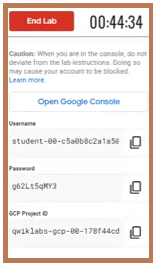
- Click Open Google Console
- नए ब्राउज़र टैब में साइन-इन पेज open होगा

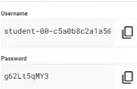
- Paste Username and Password
- For example: Username and Password
- Accept the terms and conditions
- कुछ क्षणों के बाद, क्लाउड कंसोल इस टैब में खुलता है।
Navigation menu and services
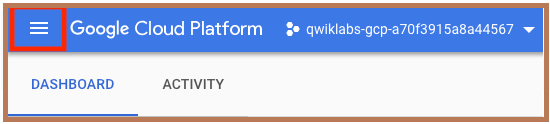
Google क्लाउड कंसोल टाइटल बार में तीन-लाइन आइकन के साथ लेबल किया गया एक बटन होता है:
Activate Cloud Shell
क्लाउड कंसोल में, top right toolbar में, Activate Cloud Shell button पर क्लिक करें।

Click Continue.
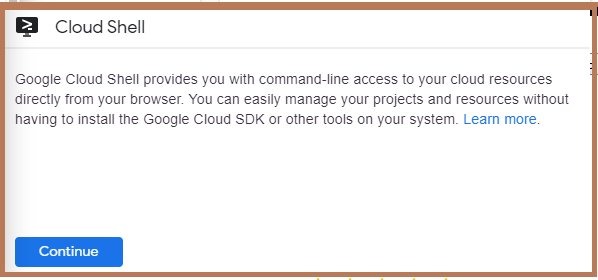
पर्यावरण के लिए provision and connect में कुछ समय लगता है।

निम्न कमांड चलाएँ और फिर संकेत दिए जाने पर अधिकृत पर क्लिक करें।
gcloud auth listOutput
Credentialed Accounts
ACTIVE  ACCOUNT
*       gcpstaging23396_student@qwiklabs.net
To set the active account, run:
    $ gcloud config set account `ACCOUNT`
आप इस आदेश के साथ प्रोजेक्ट ID सूचीबद्ध कर सकते हैं:
gcloud config list projectOutput
[core]
project = qwiklabs-gcp-44776a13dea667a6
Understanding Regions and Zones
कुछ computation engines संसाधन क्षेत्रों या regions में रहते हैं। एक क्षेत्र एक विशिष्ट भौगोलिक स्थान है जहाँ आप अपने संसाधन चला सकते हैं। प्रत्येक region में एक या अधिक region हैं। उदाहरण के लिए, us-central1 region मध्य संयुक्त राज्य अमेरिका के एक region को दर्शाता है, जिसमें us-Central1-a, us-central1-b, us-central1-c और us-central1-f हैं।
ज़ोन में रहने वाले संसाधनों को ज़ोनल रिसोर्स के रूप में जाना जाता है।
Create a new instance from the Cloud Console
- on the Navigation menu>> click Compute Engine > VM Instances.
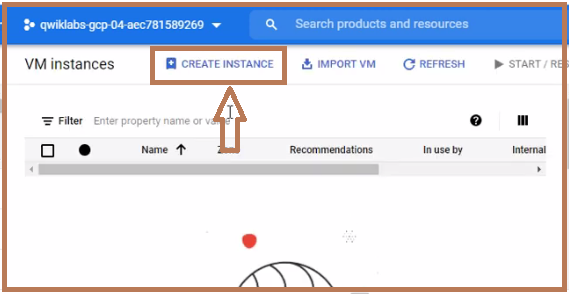
2. click CREATE INSTANCE
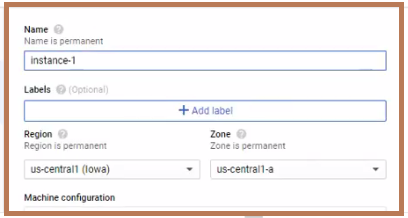
3. There are many parameters you can configure when creating a new instance. Use the following for this lab
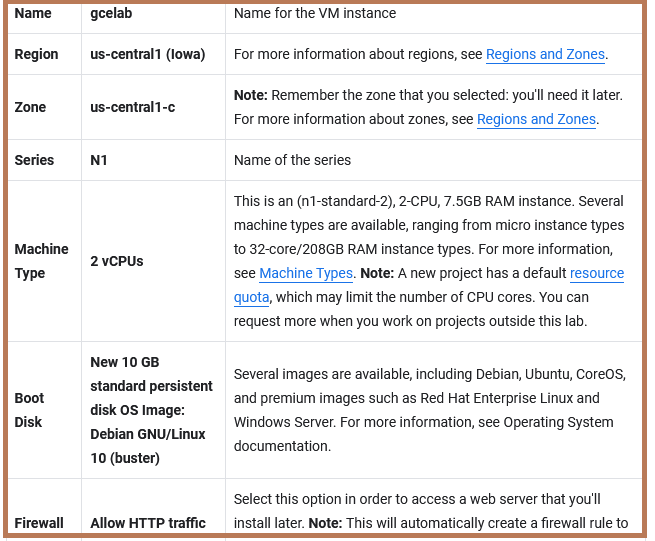
4. Fill all fields according the given parameters
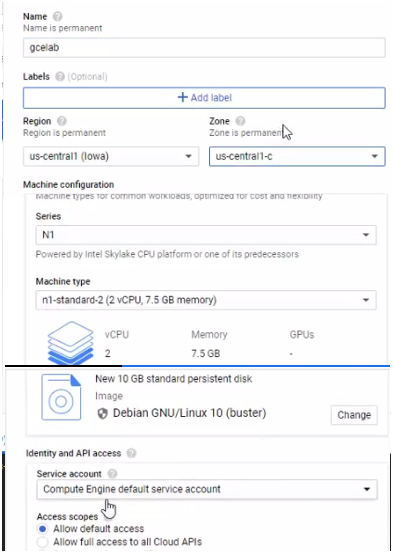


5. वर्चुअल मशीन से कनेक्ट करने के लिए SSH का उपयोग करने के लिए, SSH पर क्लिक करें।

Install an NGINX web server
SSH टर्मिनल में, रूट एक्सेस पाने के लिए, निम्न कमांड चलाएँ:
sudo su -Root उपयोगकर्ता के रूप में, अपने OS को अपडेट करें:
apt-get updateOutput
Get:1 http://security.debian.org stretch/updates InRelease [94.3 kB]
Ign http://deb.debian.org strech InRelease
Get:2 http://deb.debian.org strech-updates InRelease [91.0 kB]
...
Install NGINX:
apt-get install nginx -yOutput :
Reading package lists... Done
Building dependency tree
Reading state information... Done
The following additional packages will be installed:
...
Confirm that NGINX is running:
ps auwx | grep nginxOutput :
root      2330  0.0  0.0 159532  1628 ?        Ss   14:06   0:00 nginx: master process /usr/sbin/nginx -g daemon on; master_process on;
www-data  2331  0.0  0.0 159864  3204 ?        S    14:06   0:00 nginx: worker process
www-data  2332  0.0  0.0 159864  3204 ?        S    14:06   0:00 nginx: worker process
root      2342  0.0  0.0  12780   988 pts/0    S+   14:07   0:00 grep nginx
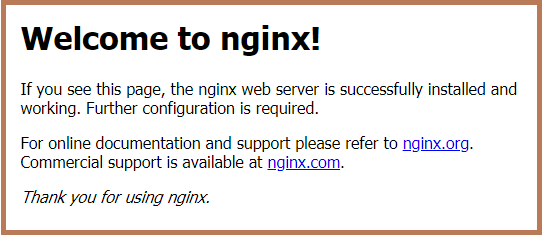
Click the External IP link, Example:”http://EXTERNAL_IP/” or http://104.154.165.45/

यह डिफ़ॉल्ट वेब पेज खुलना चाहिए:
click Check my progress
Create a new instance with gcloud
क्लाउड शेल में, कमांड लाइन से virtual machine instance बनाने के लिए gcloud का उपयोग करें:
gcloud compute instances create gcelab2 --machine-type n1-standard-2 --zone us-central1-cOutput
Created [...gcelab2].
NAME     ZONE           MACHINE_TYPE  ...    STATUS
gcelab2  us-central1-c  n1-standard-2 ...    RUNNING
click Check my progress

To see all the defaults, run:
gcloud compute instances create --helppress CTRL + C.
Navigation menu, click Compute Engine > VM instances.
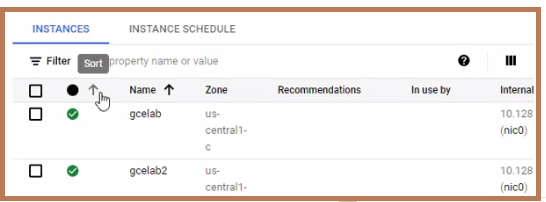
आप gcloud के माध्यम से अपने उदाहरण से कनेक्ट करने के लिए SSH का उपयोग कर सकते हैं। यदि आपने विश्व स्तर पर विकल्प सेट किया है तो अपने ज़ोन को जोड़ना सुनिश्चित करें या –zone ध्वज को छोड़ दें:
gcloud compute ssh gcelab2 --zone us-central1-cOutput
WARNING: The public SSH key file for gcloud does not exist.
WARNING: The private SSH key file for gcloud does not exist.
WARNING: You do not have an SSH key for gcloud.
WARNING: [/usr/bin/ssh-keygen] will be executed to generate a key.
This tool needs to create the directory
[/home/gcpstaging306_student/.ssh] before being able to generate SSH
Keys.
Type Y to continue.
Do you want to continue? (Y/n)Press ENTER through the passphrase section to leave the passphrase empty.
Generating public/private rsa key pair.
Enter passphrase (empty for no passphrase)
After connecting, disconnect from SSH by exiting from the remote shell:
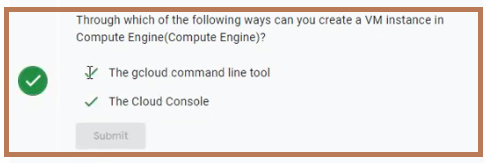
exitTest your knowledge
Congratulations!
Read More
- A Tour of Qwiklabs and Google Cloud in Hindi
- Google Cloud Ready Facilitator Program 2021 in Hindi
- Enrolment now in the GoogleCloudReady Facilitator Program in Hindi
- Rules for availing the prizes in Hindi